" });

Blogger SEO perfect and fast work


Blogger SEO Perfect And Fast Work!
asd
First Step
. Go to Dashboard >> Setting >> Search Preference
Under Search Preference section Click Enable [Custom Robots Header Tags]  and check same box in below Picture
Then Click Save Changes
you completely done step 1.know step 2

Second Step
Go to http://www.xml-sitemaps.com/
follow the step in below Picture

Congratulation! You`re Done

Advertisments

Comments Not Showing on Blogger+comment tab

Comment tab Hello Friends I`m Saqib Ahmed i have This problem and after i`m completely solve this problem so i decided to share with you and i hope you like (it`s my desire) In the first pic You can see There is no comment tab Right! and also comments not showing on any post/page etc..like this pic

1 comment on this post but comment not showing now here is the starting my tutorial

----------------------------------------------------------------------------------
How To Solve Comments Not Showing Problem? 
----------------------------------------------------------------------------------
Ans:Go to google+ Tab in this tab you can menage your G+ Comment so uncheck Where my second Arrow {Use Google+ Comments on this blog}

---------------------------
After Solving The Problem
---------------- ----------
Know you can see post comment now is showing


Advertisments

Color Code Generator

This Color Code Generator will help you get the six digit color code i.e hexadecimal value. It could be very effective if you want to get  a perfect combination of colors for your blog and if you have a good experience about color picking and selection matching, this will help you to make your blog to look really professional. The Color Code Generator is also very useful when you try to blend the Google Adsense Ads with the site content.


Instruction
- Drag the bar on the "Hue" selector to the area of your desired color palette.
- Then click inside the Brightness/Saturation area and drag the cursor until you have achieved your desired colour. The "Swatch" bar shows you the final colour result.
- The hexadecimal colour code is generated in the "Hex" box. Simply copy the six digit code i.e #000000

How To Hex Color Code Generator?


Advertisments

Author Box Widget for Blogger


I Am going to show you how to add Cool Author Box Widget for Blogger Every post/page.. Actually This widget made up of CSS+HTML & no JavaScript is used.
In this widget you can add your Google+, Twitter, Facebook and Feedburners ID so that your blog visitors can contact you easily. Also it has a subscribe email bar beside the social icons. The demo of this author box can be seen by clicking the below button

Live Demo
click here it is my new template for blogger
and it`s under constraction[Shadows-villa]


Adding The CSS.
Add The Below Code Just below <head>


Adding The HTML.
Add Html enter Post footer-line-1 by Ctrl + F and Find
<div class='post-footer-line post-footer-line-1'>

Add the code given just below <div class='post-footer-line post-footer-line-1'>

Note:If you may find more then 1 <div class='post-footer-line post-footer-line-1'>
so make sure that you are pasting under the right one.If the author box doesn`t work paste
the code, under the second tag.

Search All Below And Change with your desired:
YOUR PIC URL
Add information about you here.
FeedUsername(you  found 3 change )
Twitter
Facebook
Google +


Advertisments

How Can i Display Html Code Better On my Blogger Blog

Hello Friends In this Simple Tutorial I am show you How to Display Your Html Code on Blogger or Blog Post/Page etc Just 2 Step very Easy And Very Helpful This is the version1 Click Here and i you want know More About blog plz visit Blogger Tips,Blogger Tricks, or Blogger , Seo Tips lables Okey! Let`s Start


  • Step 1

  • -Go To Blogger >> Dashboard >>
    -Past Code after <head> Below


  • Step 2
  • and the following code in to <body> Wherever To Want To Put Your Code
    # Your Ruby Code
    Or Use This code in Your Post/etc


    Advertisments

    Text Border

    Use Multple Text-Shadows

    text-shadow: 2px 0 0 #fff, -2px 0 0 #fff, 0 2px 0 #fff, 
    0 -2px 0 #fff, 1px 1px #fff, -1px -1px 0 #fff, 1px -1px 
    0 #fff, -1px 1px 0 #fff;

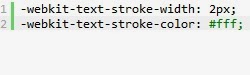
    Alternatively, you could use text stroke, which only works in webkit:
    -webkit-text-stroke-width: 2px;
    -webkit-text-stroke-color: #fff;


    Advertisments

    Add Alt and Title Attributes To SEO Optimize Images


    How ALT and Title Tags For Image Optimization Works?
    Before understanding the process, it is important to know that what actually ALT and Title tags are? These are the HTML attribution or tags which are used for images. ALT is specially for image whenever you can use the Title tag anywhere. These tags describe about the thing in which they are implemented. For example, if I add "Best SEO Tips" keyword in image then it will tell the search engine's crawler that this image is about SEO Tips and this will help the search engine robot to understand the media content and rank them appropriately. If you put the most searched, popular and appropriate keywords in your image then your images will be ranked higher in image search results and you will be getting enough traffic from it
     ===========================================
    Example:
    BTTW - SEO Tips
    How To Add These Tags To Images In Blogger?
    So if you're using Blogger Platform for your blog then continue reading. In WordPress, that platform automatically take and add the keyword from image name but in blogger you will need to implement this manually. In order to implement this tactic in your images, Go To Blogger >> New Post >> Upload Image

     After adding images, Click on the image, some options will appear in the horizontal line. Click on the Properties

     Now the image properties pop up will appear with the ALT and Title fields. Simply write the appropriate and main keywords in those fields and hit the OK button

    ALT Text


    Advertisments

    Advertisment